Surface & Stylization
Video ZLZ Anime Shader – Surface & Stylization Overview
Base Character Colors
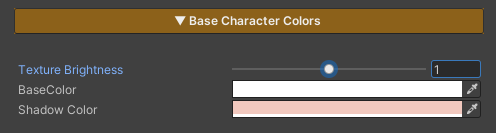
This section is used to adjust the character’s base color tones. It is designed to allow direct visual tuning through the material, without the need to repeatedly modify texture assets.
Parameters
- Texture Brightness : Adjusts the brightness of the main texture
- Base Color : Controls the overall color tone of the character
- Shadow Color : Adjusts the color and intensity of shadows to control the character’s mood and contrast
ToonRampShade

- Used to control the sharpness of light and shadow edges in a toon style
- Lower values produce sharper, harder lighting edges
- Higher values result in smoother, more gradual light transitions
Outline
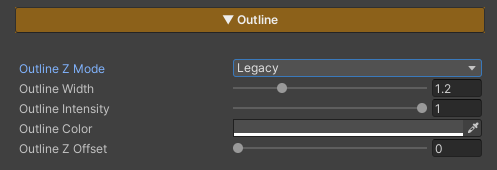
Parameters
- Outline Z Mode : Provides two modes:
- Legacy — Allows the use of Outline Z Offset, but may cause issues when used with certain types of reflections
- Planar Safe — Resolves compatibility issues with some reflection types, but disables the use of Outline Z Offset
- Outline Width : Adjusts the thickness of the outline
- Outline Intensity : Controls the brightness of the outline (0 = black / 1 = uses the Base Color from the Main Texture)
- Outline Color : Directly sets the outline color
- Outline Z Offset : Adjusts the offset distance of the outline from the character surface, used to prevent z-fighting with the surface or to increase outline prominence
Metallic
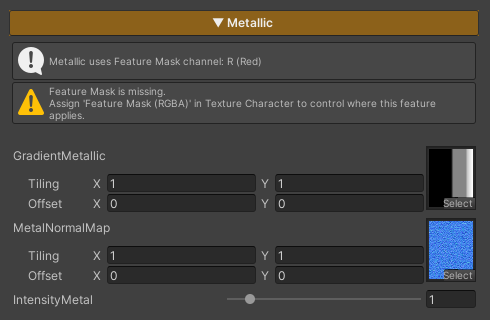
Metallic is used for character parts made of metal materials, adding shine and surface depth.
If no Feature Mask (Red Channel) is assigned to define the active area, this feature will not be applied.
Parameters
- Gradient Metallic : Uses the
T_Gradient_Metallictexture to control the metallic reflection behavior. Adjusting Tiling and Offset is not recommended, in order to achieve results as intended by the design - MetalNormalMap : Uses a normal texture to add surface detail to metallic areas. The default texture is
T_Normal- Lower Tiling values (e.g. 0.05 × 0.05) produce a more toon-style look
- Higher Tiling values (e.g. 30 × 30) produce a more semi-realistic look
- Intensity Metal : Controls the brightness of the metallic areas
Transparency

Parameters
- Alpha Value : Controls the overall transparency of the entire character, suitable for cases where full character transparency is required
Note
To control transparency only in specific areas, set the Alpha Channel in the Main Texture.
Areas with lower Alpha values (darker) will appear more transparent,
while areas with higher Alpha values (brighter) will appear more opaque.