Features
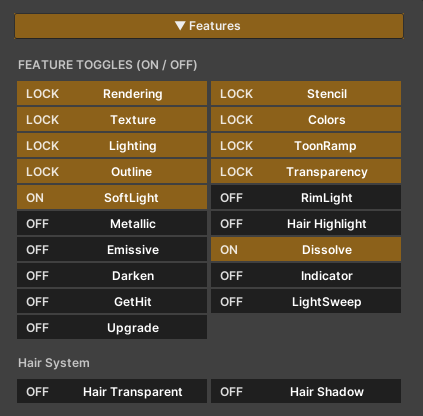
The features of this shader are designed to be divided into two main groups, based on their roles and impact on performance.
1. Locked Features
These features form the core systems of the shader and are designed to be always enabled.
- They provide the fundamental structure required for the shader to function
- They cannot be disabled
- Enabling these features does not impact performance
2. On / Off Features
These features are optional, allowing users to enable or disable them as needed.
- They can be toggled on or off through the material
- When disabled, the system removes the related calculations entirely, helping maintain appropriate shader performance
- Features in this group cannot be toggled at runtime and should be configured during setup or before use
Texture Character
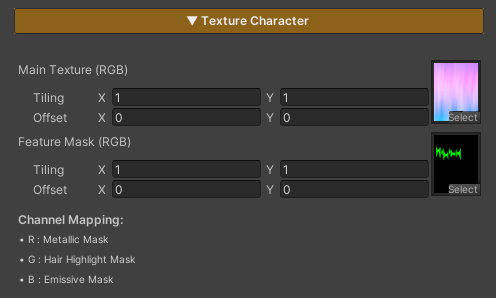
This shader uses two main types of textures, as described below:
Main Texture (RGBA)
The primary texture used for rendering the character’s surface.
Parameters
- RGB (Red, Green, Blue) : Defines the character’s base color
- A (Alpha) : Controls the character’s transparency; darker masked areas become more transparent
Mask Layout (Update in v 1.5.0)
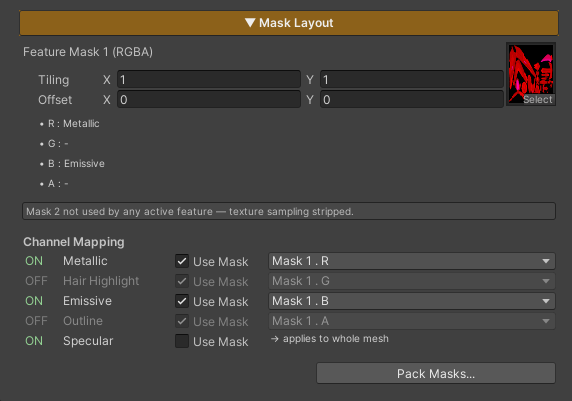
A mask texture management system for ZLZ Anime Shader, packs masks for multiple features into a single texture to save VRAM and reduce texture samples
Feature Mask (RGBA)
A texture used to control the operating areas of various features by masking each channel.
Concept
- One texture has 4 channels (R/G/B/A) → 1 channel = 1 feature mask → 1 texture supports 4 features.
- ZLZ Anime Shader supports up to 2 mask textures = 8 features total.
Default Layout:
- Mask 1: R = Metallic, G = Hair Highlight, B = Emissive, A = Outline
- Mask 2: R = Specular
How to Use
Each feature has a “Use Mask” checkbox:
- ✓ Checked : Reads mask from the selected channel → feature applies according to the mask
- ☐ Unchecked : Feature applies to the whole mesh → no texture needed
You can change each feature’s dropdown to point to a different channel if you want to design your own layout,
if any feature crosses into Mask 2, the Mask 2 slot appears automatically.
ZLZ Mask Packer (Update in v 1.5.0)
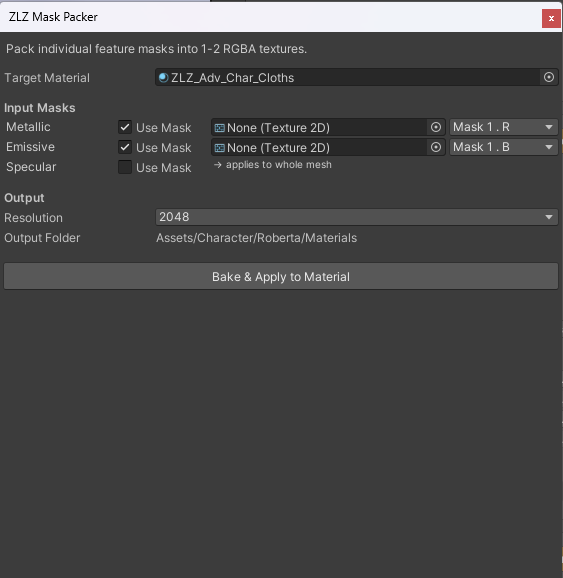
A tool that bakes individual mask textures into a packed RGBA texture automatically — no need to open Photoshop to combine channels manually.
How to Open
- Click the “Pack Masks…” button in Mask Layout (Material Inspector)
- Or from menu: Window > ZLZ > Mask Packer
How to Use
- Select a Target Material
- The tool shows only features that are enabled on the material
- For each feature:
- ✓ Use Mask → drop a texture and pick the destination channel
- ☐ Unchecked → do nothing (feature will apply to the whole mesh)
- Click Bake & Apply to Material
What the Tool Does Automatically
- Combines textures → creates MaterialName_Mask1.png (and Mask2 if needed) next to the material
- Configures the importer (sRGB Off, Mipmap On)
- Assigns textures back to the material + sets channel mappings + refreshes keywords
Things to Know
- The tool reads the R channel of each source texture as the mask value (supports both grayscale and color textures)
- If two features target the same channel → a warning appears and Bake is disabled
- Existing Mask1 / Mask2 files will be overwritten