← Back to Home
PaintMode - Tools
ShowcasePaintMode - Control
ShowcasePaintMode - Texture
ShowcasePaintMode - Brush
ShowcasePaintMode - Debug
Setup - PaintMode
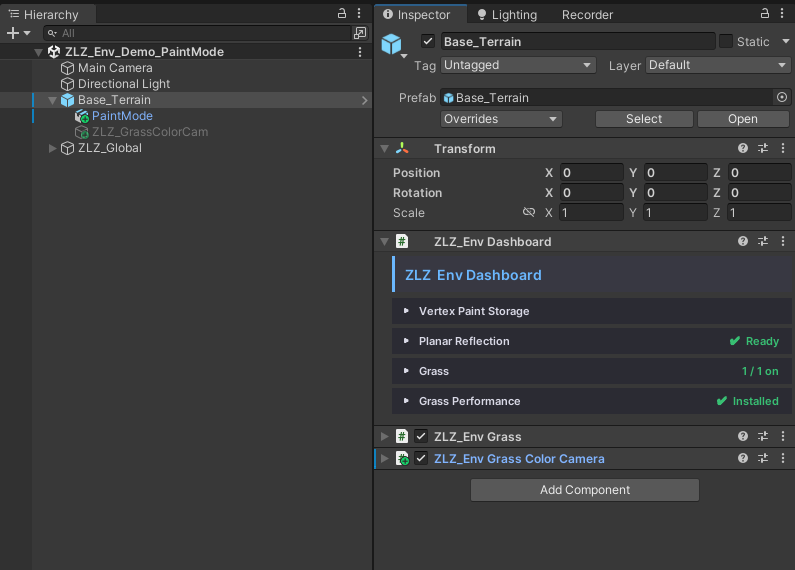
- The Mesh you want to paint must be under
Base_Terrain, or under a Parent that has theEnv Dashboardscript attached- Path : Assets/ZLZ_EnvironmentShader/Demo/Prefab/Base_Terrain.prefab
- Assign a Material that uses ZLZ_Environment_Shader
- Path : Assets/ZLZ_EnvironmentShader/Shaders/Core/ZLZ_Environment_Shader.shader
What Can PaintMode Do?
- Paint additional decorative textures onto meshes you authored, whether in Maya or Blender
- Paint on both horizontal and vertical surfaces
- Customize your own brushes
- Freely control brush size and hardness
- Once enabled, it works alongside every other feature in the Shader
Mask Source
- Chooses where the “paint data” is stored. Switched via a shader keyword at build time — it is not a runtime value
- Mask = stored in a texture (_PaintMask). Detail capped by texture resolution. Needs clean UVs in the selected channel
- Vertex Color = stored in the mesh’s vertex colors. No texture or UVs, lighter, DCC-painted colors show up immediately. Detail capped by vertex density
- If data exists in both Mask and Vertex Color, only the selected source is displayed
- The Grass system reads this value, so switching the Mask Source automatically re-samples every grass clump
Active Layers (1-4)
- Choose how many Layers to use; unused Layers are hidden
- Assign a Texture to each Layer, selecting which Texture goes in which slot
- Adjust the Size of each Texture
Mask
- Name the Mask Texture file — it is exported automatically once painting is done
- Set the Resolution (512, 1024, 2048)
- Specify the destination where the Mask Texture file is saved after painting
- New Mask : create a new Mask Texture
- Clear : erase all existing data on the current Mask Texture
- Revert to Saved : roll back to the last saved state
- Undo : up to 8 steps back, or press Ctrl + Z
- Debug Mode : available only while Start Painting is enabled
PaintMode - Material
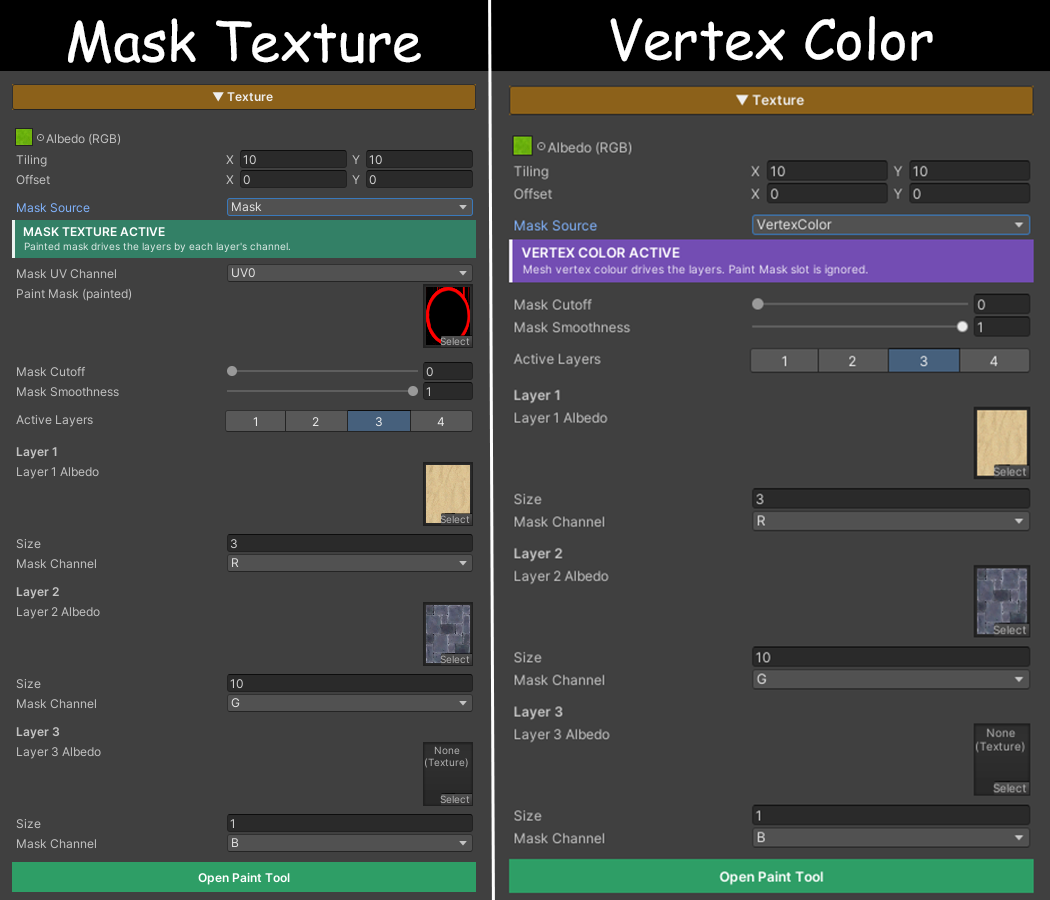
Albedo (RGB) / Tiling / Offset
- The base Texture of this material — what you see in areas that have not been painted. Every Paint Layer is composited on top of it
- Tiling/Offset is Unity standard (_MainTex_ST) and affects only the base Albedo, not the Layers
- If Triplanar is enabled, this section is replaced by World Tiling + Blend Sharpness
Parameters
- Mask Cutoff = pulls the edge inward. Higher values drop faint strokes, keeping only heavy paint
- Mask Smoothness = edge softness. High = soft gradients, low = crisp. Near 0 = hard two-tone cut