Screen Space Reflection
New in v1.1.0. v1.0.0 had Planar Reflection only.
Reflections on any surface — raised platforms, slopes, walls — with no reflection plane to set up. Each pixel traces its reflection through the frame already on screen. It is the default Reflection Type when you turn Reflection on.
Showcase Screen Space Reflection
Choosing a Reflection Type
Each material uses one method :
| Screen Space | Planar | |
|---|---|---|
| Surfaces | Any | Flat floors only |
| Off-screen objects | Not reflected | Reflected |
| Cost | One pass, no second render | Renders the scene twice |
| Water | — | Yes |
Start with Screen Space. Switch to Planar for large flat floors where reflections vanishing at the screen edge would be noticed.
Setup
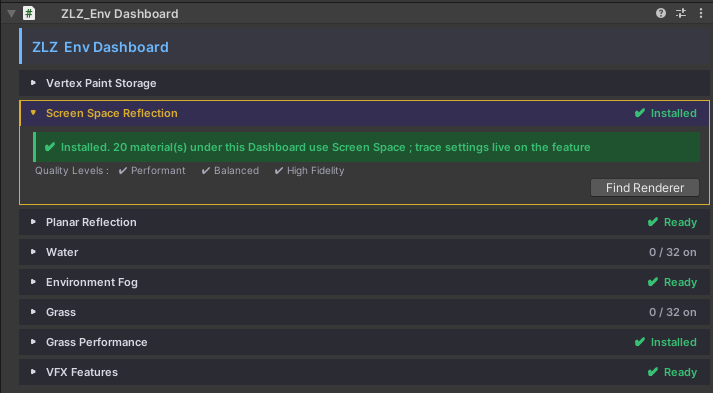
- Material — turn on Reflection in the Features grid. Reflection Type starts on
Screen Space Reflection - URP Renderer — needs
ZLZ Env Screen Space Reflection. The Dashboard installs it for you - Scene — add a baked Reflection Probe over the reflective area
Always pair it with a Reflection Probe. SSR can only reflect what is on screen. Everything else — the screen edges and the area behind characters — shows the probe instead. Without one, those gaps show the Skybox.
Parameters — Material
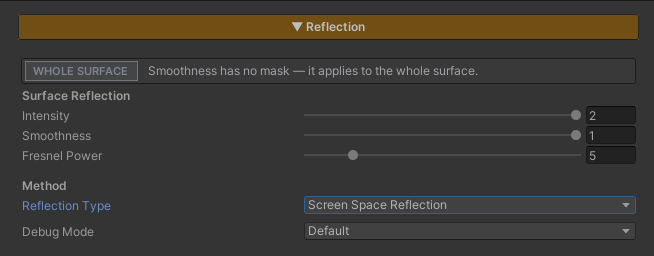
- Intensity (default
1) — strength of the reflection - Smoothness — shared with Specular. High = sharp, low = blurry,
0= no reflection - Fresnel Power (default
5) — lower = visible from more angles, higher = grazing angles only - Reflection Type — Screen Space or Planar
Debug Mode
- Default — final result
- Fresnel Mask — how much reflection each pixel gets
- Screen Space Trace — white = hit, red = hidden behind an object, blue = off screen, green = facing the camera
- Screen Space Only — the traced reflection without the probe
Parameters — Renderer Feature
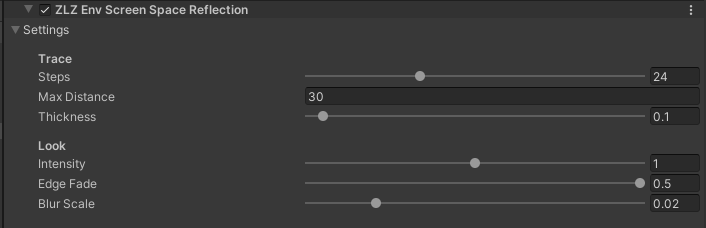
Applies to every Screen Space material at once.
- Steps (default
24) — trace quality.24for PC,12for Mobile - Max Distance (default
30m) — how far a ray can travel - Thickness (default
0.1m) — raise only if thin objects show holes in their reflection - Intensity (default
1) — strength of the traced reflection over the probe - Edge Fade (default
0.12) — fades reflections out near the screen edges - Blur Scale (default
0.015) — blur on rough surfaces
Need frames back? Lower Steps first, then Max Distance.
Limits
- Only reflects what is on screen — use Planar when off-screen reflections matter
- Opaque materials only
- Water always uses Planar Reflection