Halftone Pattern
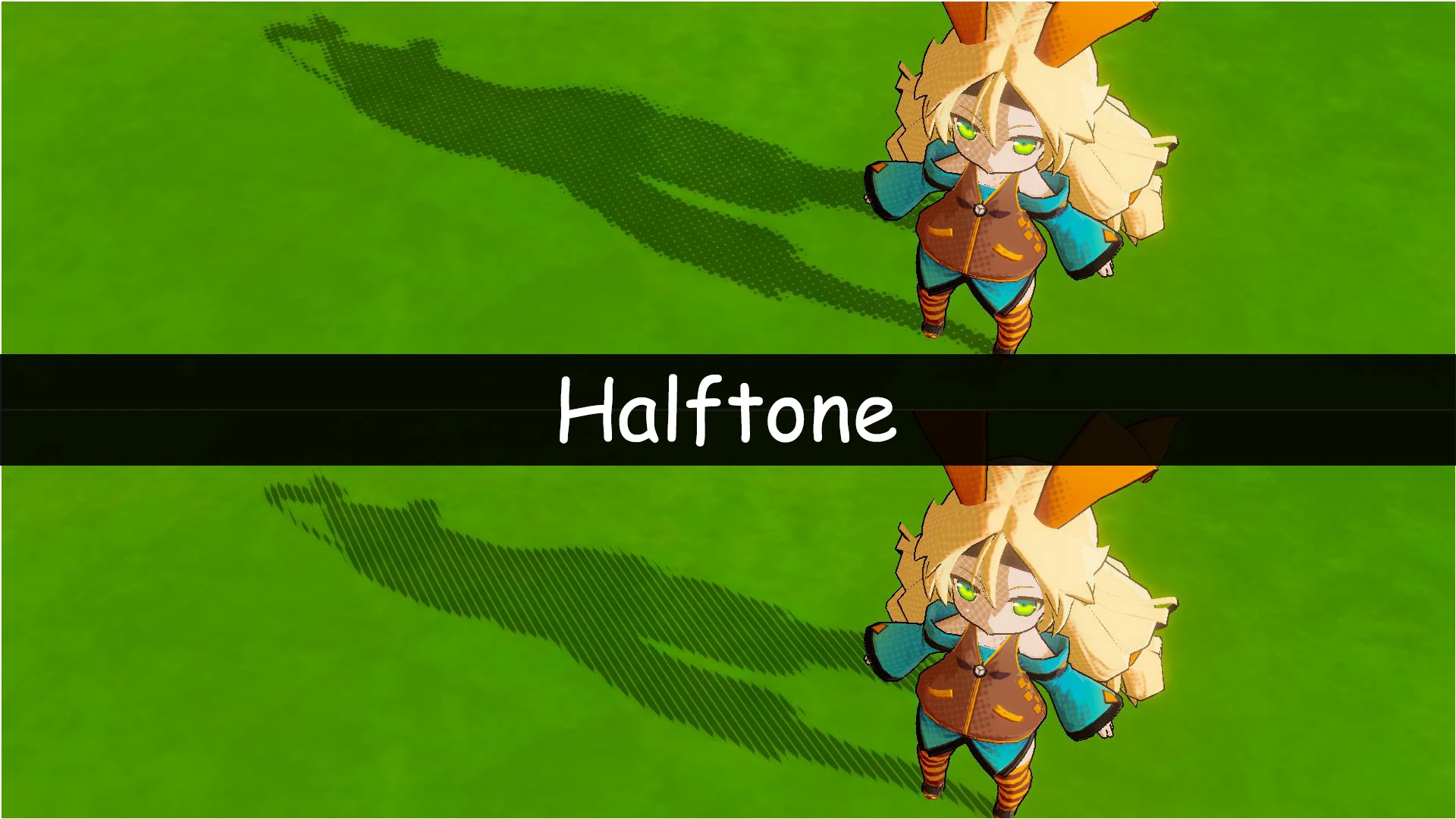
Draws shading on the environment as print-style ink: halftone dots, hatching lines, cross-hatch, or your own pattern texture. A character’s shadow on the ground becomes a screen tone, matching a character using Halftone in ZLZ Anime Shader.
(Halftone Pattern will be added in version 1.7.0.)
This is the same feature as Halftone in ZLZ Anime Shader, with the same parameters and the same ink rule. The differences are World space and Shadow Sources, explained below.
Turn on Halftone in the Features grid and the Halftone Pattern section appears.
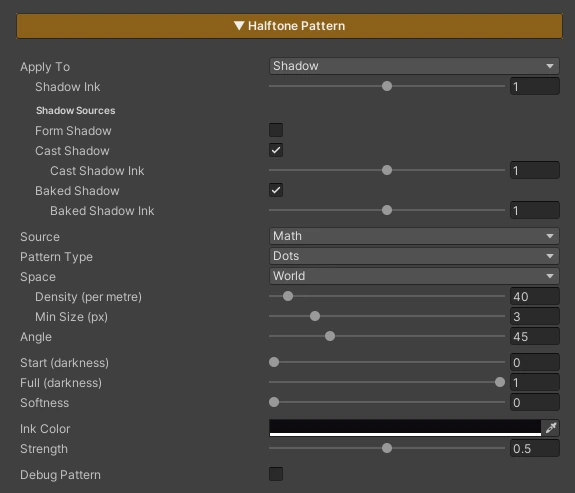
Parameters
- Apply To : Where the ink can appear
- Shadow : The shadow side, limited by Shadow Sources below
- All : The whole surface. Dark colors get ink even in the light, like a printed page
- Light Ink / Shadow Ink : Ink weight for each area (0 = none / 1 = normal / 2 = heavier). Light Ink is shown with All only
- Source : Math (built-in shapes, no texture) or Texture (your own pattern texture)
- Pattern Type : Dots / Lines / Cross. Math source only
- Pattern Texture : The pattern tile. Texture source only
- Space : How the pattern is placed
- World : Laid out in world metres, so the pattern runs unbroken across floors, walls and props of any size
- Surface : Stuck to this object, for props that move
- Screen : Flat on the screen like a printed page. Can shimmer while the camera moves
- Density (per metre) : World and Surface. Dots per metre (higher = smaller dots)
- Screen Cells / Reference Distance / Distance Scaling : Screen only. Same as in ZLZ Anime Shader
- Min Size (px) : When dots get smaller than this on screen, they blend into a flat tone of the same darkness instead of turning into noise
- Angle : Rotation of the pattern
- Start / Full (darkness) : How dark a color must be before ink starts, and where cells are fully inked. Lower Full = heavier ink overall
- Softness : Edge blur of each dot or line (0 = crisp)
- Ink Color : Color of the dots or lines
- Strength : Blend of the ink over the shaded color (1 = solid ink)
- Debug Pattern : Shows the pattern alone, white on black
Shadow Sources
Shown with Apply To Shadow. Choose which kinds of shadow get ink. Each one has its own Ink slider when turned on, and where two overlap the heavier one wins. The surface color itself does not change.
- Form Shadow : The side facing away from the sun, like the back of a hill or the dark side of a rock
- Cast Shadow : Shadows from other objects, like a character on the ground or a tree on a wall (needs Receive Shadow in Lighting)
- Baked Shadow : The Lightmap Step edge in a baked scene (needs Lightmap Step above 0 in ToonRamp Shade)
Turning off Form Shadow keeps slopes and terrain clean and leaves ink only on the shadows that fall on them.
How Ink Amount Works
Ink follows the darkness of the painted color (texture × Shadow Color or Base Color). Light intensity does not change it, so a pale ground stays light and a dark rock gets heavier ink.
Custom Pattern Texture
Any tileable grey image works. Dark pixels get ink first, light pixels last.
- Starter tiles are in ZLZ / Common / Textures / Pattern, shared with ZLZ Anime Shader
- Import settings: sRGB off, Wrap Mode Repeat, Compression None
Tips
- If whole hills or slopes fill with ink, turn off Form Shadow or lower ToonRamp Smoothness
- If the pattern breaks between two objects, use World space on both
- If far ground shows noise, raise Min Size
- If the ink looks too harsh on large areas, lower Strength or use a darker version of Shadow Color as Ink Color
Performance
Math source uses only arithmetic, no texture. Texture source adds 3 texture samples per pixel in World and Surface space, 1 in Screen space. Environment surfaces cover much of the screen, so the cost scales with how much of the scene uses it.