← Back to Home
MatCap
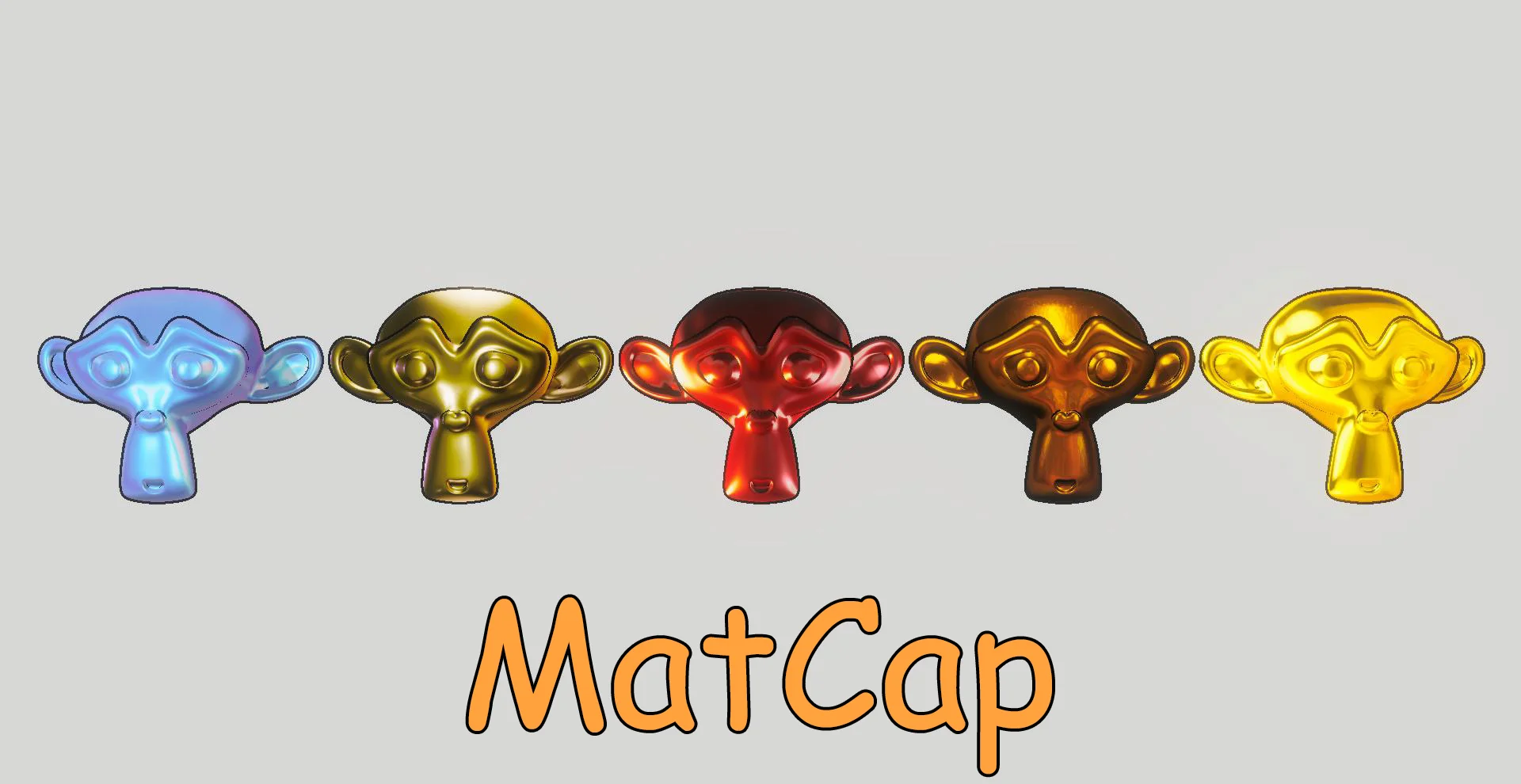
Adds a material look from a single sphere texture. Metal, gold, glossy plastic or leather can be painted into the sphere and put on any part of the character, no reflection probe or extra light needed. The MatCap follows the camera, not the light, so the shine stays in place when the character turns.
(MatCap will be added in Version 2.7.0.)
Turn on MatCap in the Features grid and its section appears.
The area is controlled by the Feature Mask (default : Mask 2, Green Channel). Uncheck Use Mask to apply it to the whole mesh.
Parameters
- MatCap Texture : The sphere texture with the material look
- Blend : How the MatCap is mixed with the shaded color
- Add : Brightens the surface. Good for metal shine and glossy highlights
- Multiply : Tints and darkens the surface. Good for leather, cloth depth and soft shading
- Color (HDR) : Tints the MatCap
- Hue : Rotates the colors of the MatCap after Color, so one texture can give several color variants (0 = unchanged)
- Intensity : Add = brightness of the MatCap. Multiply = full strength at 1
- Shadow Fade : Add only. 0 = same in light and shadow / 1 = lit side only
MatCap Texture
- Starter textures are in ZLZ / AnimeShader / Textures / MatCap (T_MatCap_001 – 005)
- Import settings: Wrap Mode Clamp
- Open ZLZ_Demo_MatCap scene to see example materials
Tips
- One gold texture + Hue can make silver, copper or colored metal without new textures
- If the MatCap looks too bright in shadow, raise Shadow Fade
- Use Multiply with a dark sphere for leather or matte parts, Add for metal and accessories
Performance
1 texture sample. The mask is shared with the Feature Mask, so no extra sample.